
 2:00
2:00Getting around the AI Hub
Two minutes from sign-in to Guide me: the left menu, projects and apps, Help, and Odin.
Home / Resources
Video Tutorials
Short, narrated walkthroughs of every app in VeraGen. Start with the tour, follow the path, or search for the one thing you need right now.
Start here
Five short videos, in order. By the end you’ll know your way around, where to get help on any screen, and how to set the AI up for your business.
2:00Two minutes from sign-in to Guide me: the left menu, projects and apps, Help, and Odin.
 1:35
1:35Press the compass on any page and it walks you through the screen you're on, one real control at a time.
 1:36
1:36Ask Odin out loud, pause, and it sends and answers. No second click, and the recording isn't kept.
 2:03
2:03Organise work by client, product line or campaign, and give each teammate just the projects they need.
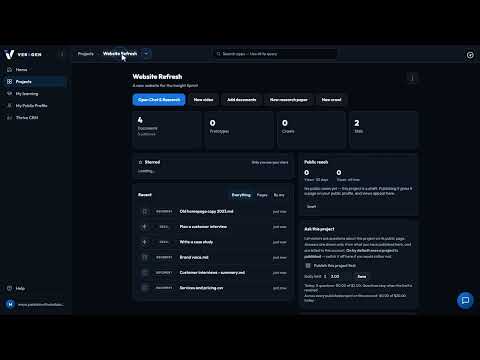 2:12
2:12Tell the AI about your business once, save the tasks you repeat as Skills, and everything it writes follows both.
Every topic
Find your way around, get help on any screen, and meet Odin. 3 videos · 5 min
2:00Two minutes from sign-in to Guide me: the left menu, projects and apps, Help, and Odin.
1:35Press the compass on any page and it walks you through the screen you're on, one real control at a time.
1:36Ask Odin out loud, pause, and it sends and answers. No second click, and the recording isn't kept.
Organise your work, and teach the AI your business and your brand. Once. 3 videos · 6 min
2:03Organise work by client, product line or campaign, and give each teammate just the projects they need.
2:12Tell the AI about your business once, save the tasks you repeat as Skills, and everything it writes follows both.
 1:57
1:57Set your colours and fonts once, starting from your logo and website, and everything the Hub builds looks like you.
Bring your documents in, keep them tidy, and write together right beside them. 3 videos · 9 min
 3:13
3:13Your project's library of pages, files and datasets, and where every AI app gets its facts.
 2:48
2:48Three ways in: upload, import from Google Drive read-only, or collect a website with a crawl. Then see how each file is read.
 3:27
3:27Write plans and meeting notes beside your files, with templates, comments, help with the wording and every version kept.
Ask your own documents questions, then turn the answers into documents, prototypes and diagrams. 4 videos · 10 min
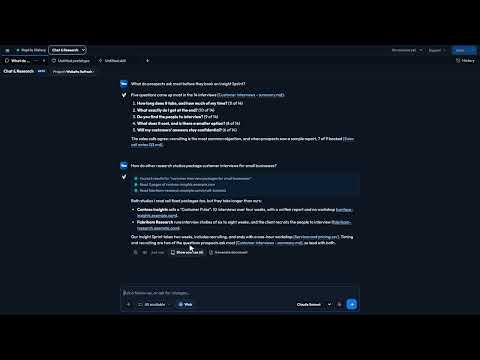 2:35
2:35Ask about your project and get answers from your own documents, with sources. Add the web, or just speak.
 2:40
2:40Turn an answer into a brief, a spreadsheet or a PDF from your own files, and keep it as a page, Word, Excel or PDF.
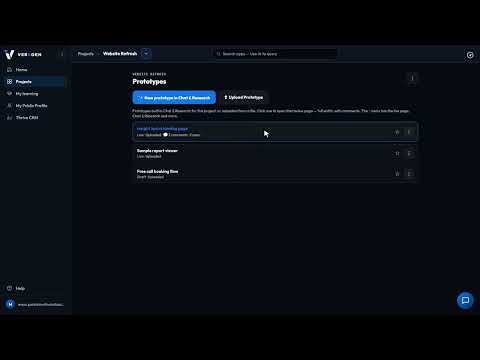 3:06
3:06Describe a clickable prototype, try it at every screen size, then publish it for your team to review in place.
 1:36
1:36Describe how your business fits together in plain words and get a clear diagram your whole team works from.
Hand the routine work to AI agents, and hear the moment something breaks. 5 videos · 10 min
 2:01
2:01Chain steps together, from reading your documents to emailing the result, and run them now or on a schedule.
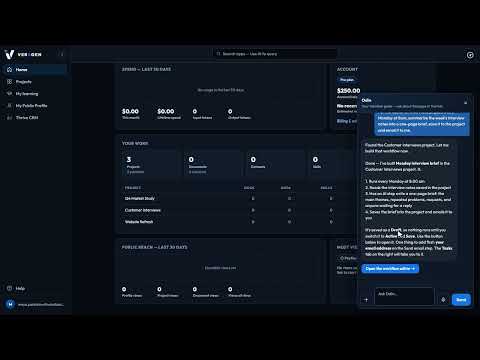 1:37
1:37Describe a routine job to Odin and it builds the workflow as a draft. Check it, switch it on, and it runs every week.
 3:26
3:26Loop blocks keep an AI step working until it meets your standard, instead of handing on its first draft.
 1:42
1:42Connect Slack once, and Uptime QA alerts and workflow results post to the channels your team already reads.
 1:42
1:42Checks your pages and sign-up forms on a schedule, the way a customer would, and emails you when something breaks.
Thrive CRM, your inbox and calendar, and finding the next customers. 5 videos · 11 min
 2:03
2:03Contacts, companies and your deal pipeline in one place. Log a call in seconds and see why the lost deals got away.
 1:54
1:54Read and reply to customer email inside Thrive, with an AI-drafted reply when you're short on time.
 3:14
3:14Connect your work mailbox, then read, archive, reply and write new mail with AI, right next to your contacts.
 1:58
1:58Book a customer meeting and it lands on the right contact's record, your week and Thrive's Today page.
 1:43
1:43Describe who you're looking for and get a scored list of prospects, each showing the sentence it came from.
Plan, write and publish your posts, then hear what people say back. 3 videos · 6 min
 1:57
1:57Plan the month on a calendar, have AI write a version of each post for every network, then approve and schedule it.
 2:04
2:04One post from idea to scheduled: a version for X and one for LinkedIn, in your brand voice, approved in minutes.
 1:55
1:55The replies and mentions your posts get on X, sorted by topic and feeling, with the questions still waiting for an answer.
From one sentence to a finished, exported video, one part of the editor at a time. 5 videos · 13 min
 2:26
2:26One sentence in, a finished video out: a script written from your own material, and the price shown before an AI shot.
 2:27
2:27Every picture, clip and sound for your videos in one place, including licensed stock from Storyblocks.
 2:53
2:53The editor's two side panes: build with Scenes, Media, Library and Effects; fine-tune with Properties, Layers and the AI director.
 2:37
2:37See the video as viewers will, choose the voice, export every shape you need and publish it to your profile.
 2:17
2:17Scrub, zoom, move, trim and split: every part of your video laid out over time, with undo for any change.
A news page for your market, and a first read on an idea before you spend on it. 2 videos · 4 min
 1:59
1:59Gather the news your customers care about from feeds you trust, and publish it as your own news page, kept current by rules you set.
 2:00
2:00Try a price, a product or a message on synthetic customers first. An early signal, not a stand-in for real ones.
Turn what your business knows into courses and quizzes, and see who is ready. 5 videos · 12 min
 2:00
2:00Courses and Quick Quizzes written only from your own documents, plus learning paths, Insights and an AI tutor.
 2:21
2:21Turn a policy or handbook into a short quiz in minutes, then see who passed and which questions people miss.
 2:38
2:38Pick the documents, say who it's for, and Ascend writes the outline, lessons and assessments from those documents only.
 3:02
3:02Run a course your team already has: role-play practice, assignments, progress, and clearer questions suggested for you.
 2:20
2:20Put a course on your public profile, let visitors take it with a name and an email, and see every result.
Billing, team access, your public profile, and getting help when you need it. 5 videos · 7 min
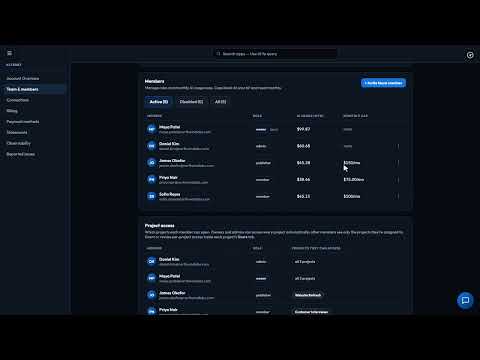 1:58
1:58One bill and the right access for everyone: your balance, top-ups, spend by person and app, roles and caps.
 1:44
1:44Budgets, Slack, the cards on file, and a PDF statement every month broken down by app, person and AI model.
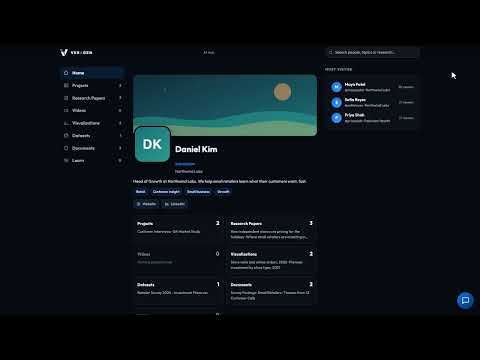 1:39
1:39A public page for your best work under your own address, where visitors can even ask a project a question.
 1:11
1:11Owners and admins can report a bug or a request from inside the Hub, with screenshots, and see exactly what's sent.
 0:56
0:56Every issue your account has reported, where each one stands, and our note about the fix.
No video matches that yet. Try another word, search the Docs, or tell us what you’d like to see.
The Docs cover every app step by step, with screenshots. Same product, your pace.
Open the DocsSubscribe to the VeraGen channel to hear when a new walkthrough is out.
VeraGen on YouTubeEvery video is recorded in the real product, using a fictional company, Northwind Labs.
Every app you just watched is included in every plan, with $5 of AI usage to start. Cancel any time before the trial ends and you pay nothing.