Using the hub
The Account section
Everything about your account — its people, connections, money and activity — is in one section. Click your avatar at the bottom of the left menu and choose Account.
What is in it
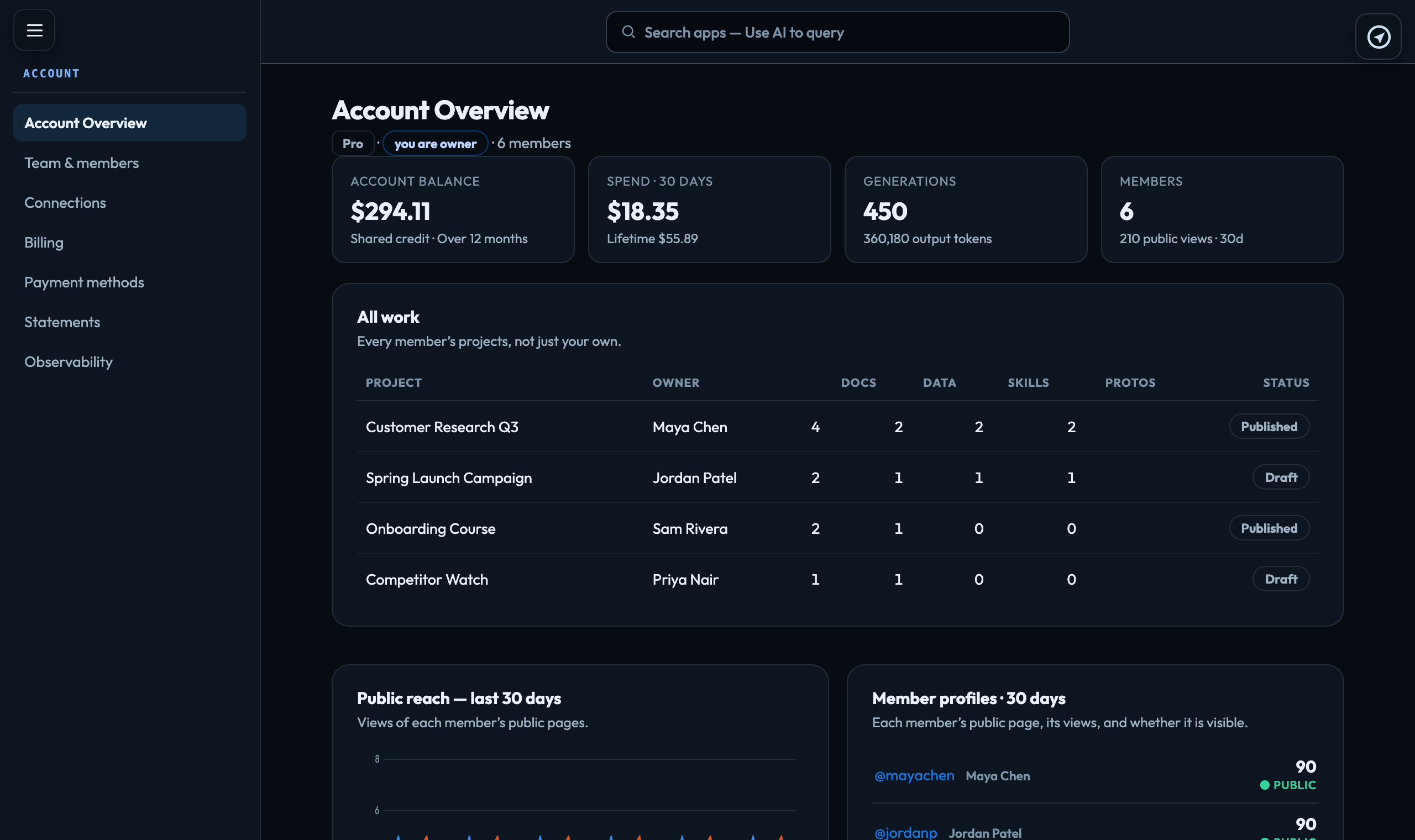
| Account Overview | The account at a glance: balance, spend over the last 30 days, generations and number of members. Below that, All work lists every member's projects, Public reach shows each member's public views over 30 days, and each member's public @profile is listed with its view count and visibility. Click a handle to open that profile in a new tab. |
|---|---|
| Settings | The account's own details: its name and web handle, the Primary contact, an extra Billing email, your Company details, and the Budgets & storage limits. More |
| Team & members | Invite people, set their roles and monthly spending caps, and choose which projects each person can open. More |
| Connections | Services the whole account connects to, such as Slack, so workflow steps and alerts can post into your own workspace. More |
| API keys | Keys that let your own code and tools call the VeraGen API for this account. Each key is shown once, when it is created. Early access: not shown until the API opens. More |
| Billing | Your balance, this month's usage, what the month has cost by person and by app, every change to the balance, payment history, and Add credit. More |
| Payment methods | The cards the account can be charged to, which one is the default, and Save a card. More |
| Statements | A statement for every month that has ended, to open as a PDF. More |
| Observability | What your AI actually did, across every project. More |
| Reported issues | Every issue your account has reported, and where each one stands. To report a new one, click your avatar and choose Report an issue. More |
Who can see it
The Account item appears for an owner or an admin of the account you have selected. Members and publishers do not have it in the avatar menu; their own balance and usage are on their Dashboard. If one of them follows a link to an Account page, the page says it is for owners and admins, and the Account column offers them only Observability, which shows their own workflows.
Billing, Payment methods and Statements need billing access. The owner always has it; an admin has it only if the owner has given it to them in Team & members. Without it, those places are not in the menu. Who can see and manage billing
Settings is for owners and admins, like the rest of the section; an admin does not need billing access to change it.
Account Overview or Dashboard?
Your Dashboard (Home) shows your own work and reach. Account Overview shows everyone's.
Signed in to VeraGen? Press Guide me on any screen for a walkthrough, or ask Odin.