Data Management
Your content library
Every project has one library for what it holds: pages you write, files you upload and datasets you chart. Open a project and choose Data Management from the search box at the top.
Getting around
The bar across the top says Data Management and which project you are in. Use Project to switch to another project. The ☰ button beside the title opens the Hub's navigation over the page, starting with Back to project and the project's other places; press Esc or click outside it to close it. The bar also has app search, Guide me, Ask Odin and New.
New makes a Page, a Page from a template, a Folder, Upload files, Import from Google Drive, or Write in Chat & Research, in the folder you have open.
Folders and items
The panel on the left holds your library:
- Search pages and files filters the panel by name.
- Dashboard shows the whole project's library at a glance. It is what you see when you open Data Management; see The Dashboard below.
- Recent opens a page of the latest items in this project's library that anyone added or changed, or that you opened, newest first, with who did what and when. Click a row to open it.
- Starred opens a page of what you have starred in this project.
- Folders starts with All files, the top of the project, and holds every folder with its pages and files. Items that are not in any folder are listed at the top level too.
- Archive, at the foot, opens a page of what has been archived, each with Restore.
Click a folder to see what is in it; click an item to open it beside the panel. A page opens as a page you can read and edit (Pages); a file opens as a preview, with Download and Ask about this in Chat & Research. To see long file names, drag the panel's right edge to make it wider; double-click the edge to put it back. The width is remembered in this browser.
Hover a folder and press + to start a new page in it. Drag anything in the panel to reorder it or move it to another folder. Every item's ⋮ menu has Open, Star (or Unstar; starred items are listed on the Starred page and on the project's Overview, for you only), Ask about this in Chat & Research, Rename, Make available to the AI or Hide from the AI, Move…, Make a copy (pages) and Archive and delete.
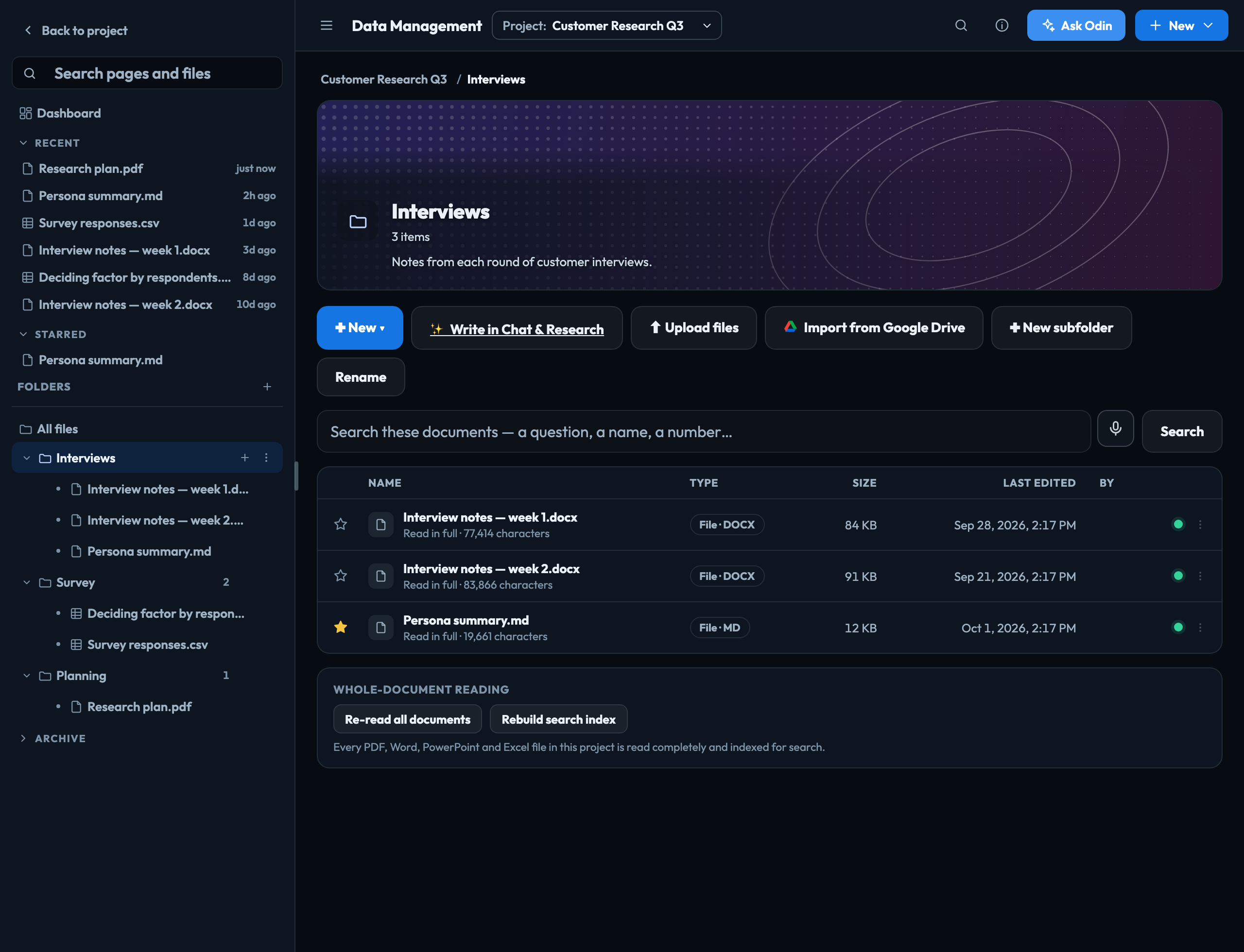
In a folder:
- New creates a page, a subfolder, or uploads, in this folder.
- ✨ Write in Chat & Research opens a new Chat & Research tab; when you save what it makes, the folder picker starts in this folder. Saving and exporting from Chat & Research
- ⬆ Upload files adds files from your computer — up to 2 GB each.
- Import from Google Drive brings files across without downloading them first. Importing from Google Drive
- ✚ New subfolder and Rename organise the folder you are in. Folders nest up to eight deep.
The folder's table shows each item's type, size, when it was last changed and who changed it.
The Dashboard
Dashboard, at the top of the panel, is what you see when you open Data Management, unless a link took you straight to a page, file or folder. It has:
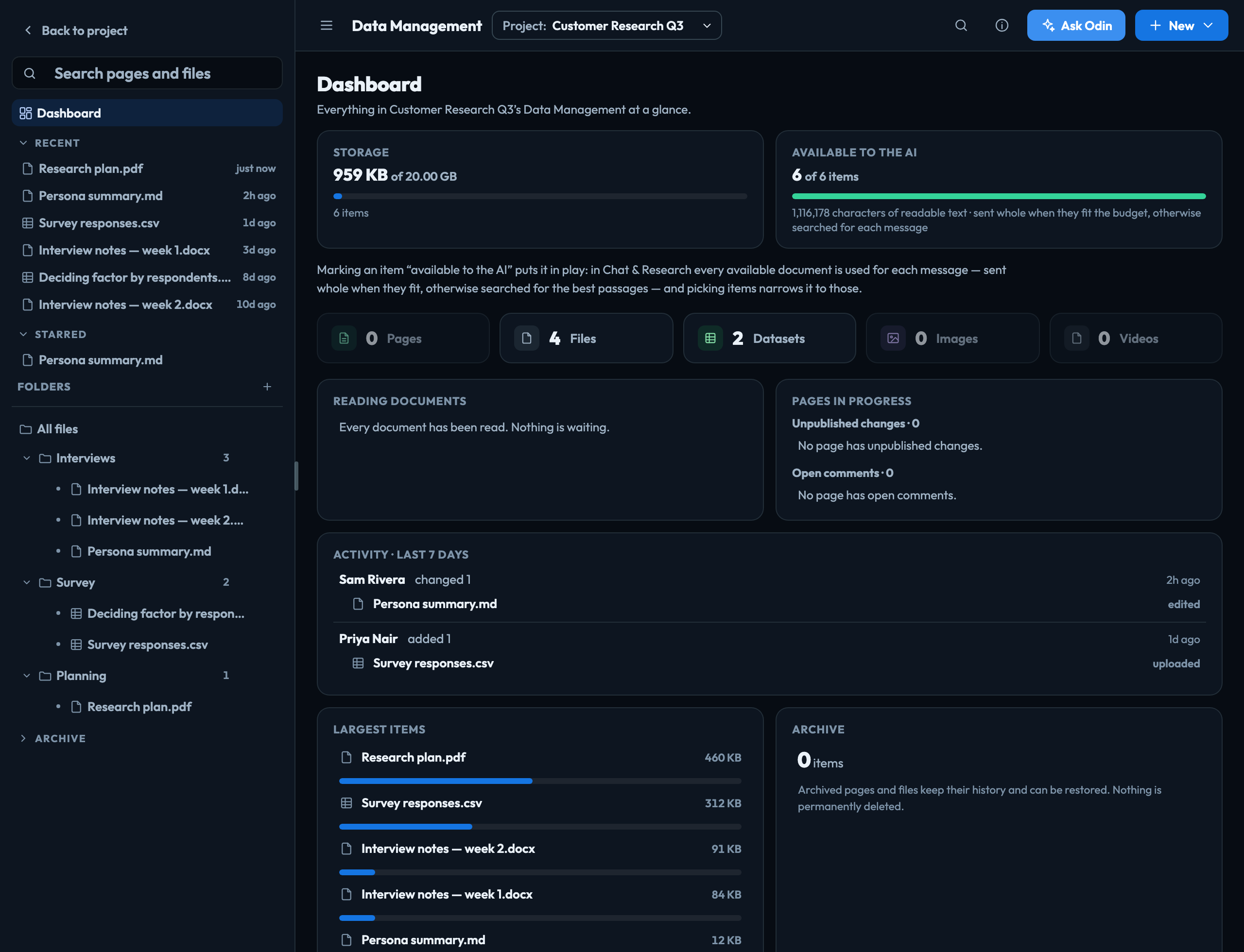
| Storage | How much the project holds, against your account's storage allowance. |
|---|---|
| Available to the AI | How many items the AI can use in this project, and how much readable text they add up to. What the AI can read |
| Pages, Files, Datasets, Images, Videos | How many of each the project holds. Click a count to list just those, from every folder. |
| Reading documents | Files still being read, and files that could not be read. Click one to open it, see why, and try again. |
| Pages in progress | Pages with Unpublished changes (someone has edited them without pressing Update; you see which are yours, never what anyone wrote) and pages with Open comments. Click a page with comments to open it with its comments showing. |
| Activity · last 7 days | Who added or changed what in the project this week, person by person. Opening an item is not counted. |
| Largest items | The five biggest items, and how much of the project's storage each takes. |
| Archive | How many items are archived. Show the Archive opens it in the panel. |
Starring
Press the ☆ at the start of an item's row, or at the top of the item when it is open, to star it. Starred items are listed on the Starred page and on the project's Overview, and only you see your stars. Press the star again to remove it.
Search
Search these documents, in a folder, looks inside the files as well as at their names. Ask a question, or type a name or a number; each result shows the passage that matched and the page it is on.
Datasets
A .csv or .tsv becomes a dataset: shown as a table (the first 500 rows), downloadable in full, and ready to use as the source of a chart in Data Visualizations.
Nothing is lost by accident
Archive and delete moves an item to the Archive at the foot of the panel, and shows Undo straight away. Nothing is permanently deleted: Restore in the Archive brings it back to its folder, with its history. Archiving also takes it off your public pages, and a restored item comes back private — publish it again if it should be public. Deleting a folder moves what was inside it up to the folder above, rather than deleting it too.
Signed in to VeraGen? Press Guide me on any screen for a walkthrough, or ask Odin.