Thrive CRM
Contacts and companies
Contacts and Companies are tables you can search, filter, sort and act on in bulk. Click a row to open its record.
The lists
- Tabs — All (for owners and admins; All I can see for everyone else), Mine, and for owners and admins Unassigned.
- Filters — Created date, Last activity and More filters: contact type, lifecycle, lead status, lead source and place for contacts; industry, company type, organization type and place for companies. Clear all removes them.
- Edit columns shows, hides and reorders columns. Your choice is kept in this browser.
- Tick rows to Assign them to a member or Archive them. Thrive says how many it did, for example Assigned 3 of 5: only a record's owner, or an owner or admin, can give it away.
- Export all downloads the current list as a CSV, up to 10,000 rows; with rows ticked, the button reads Export 3 selected and exports only those.
- Restore lists archived records; Restore on a row brings it back as it was.
- Create contact or Create company adds one. An email address belongs to one contact per account, so adding one that already exists is refused.
A record
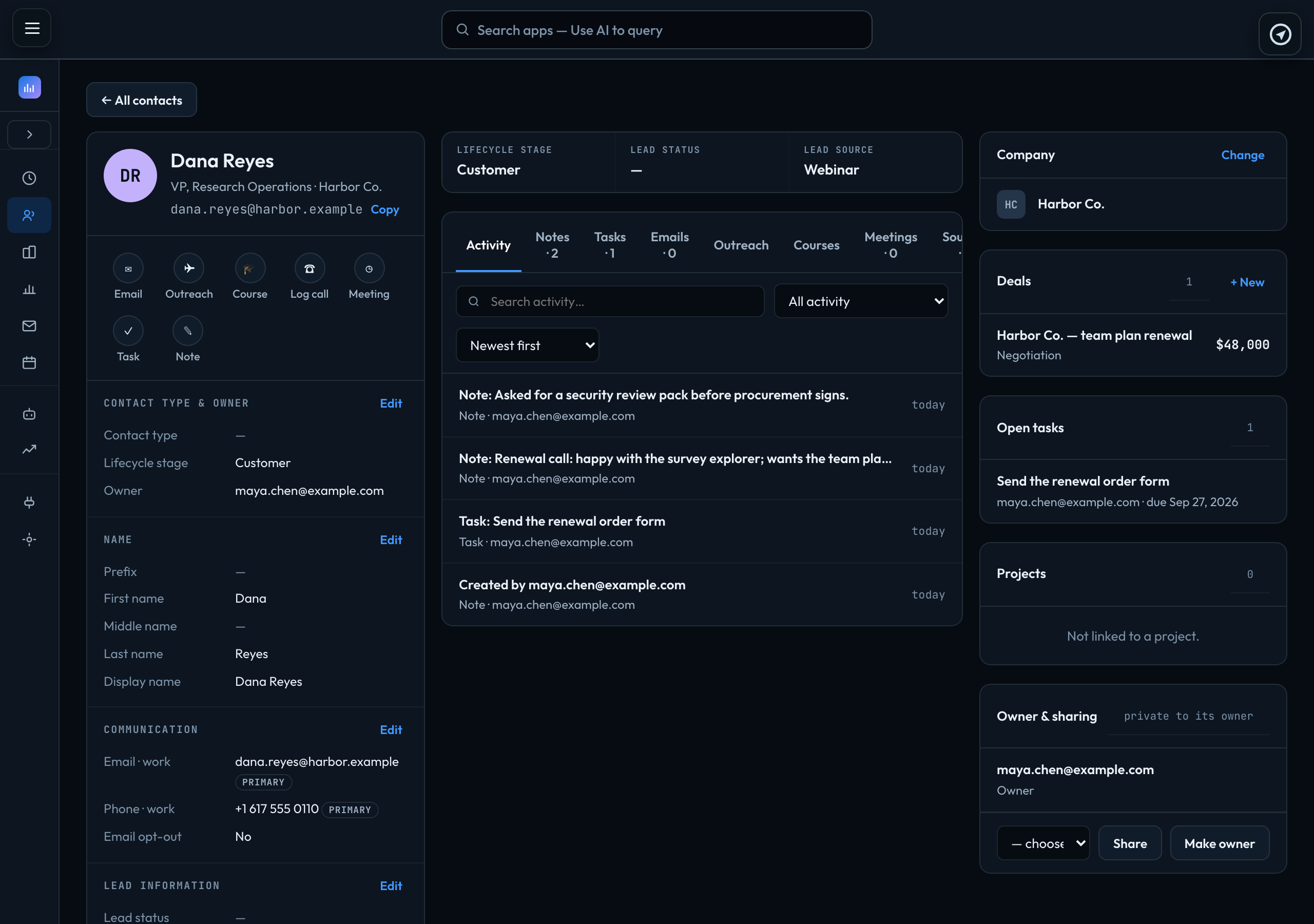
A record has three columns.
Left: who they are. Quick actions — Email, Outreach and Course (for a contact with an email address), Log call, Meeting, Task and Note — then the fields in sections. Press Edit on a section, change it, and press Save or Cancel. A contact can have several emails, phones and addresses; the one marked primary is used everywhere else. Archive is at the foot.
Middle: what has happened. Activity (search it, filter it by type, newest or oldest first), Notes and Tasks, and on a contact Emails, Outreach, Courses, Meetings and Sources — where each value came from. Why every field has a source
Right: what it is attached to. Its company (or, on a company, its people), Deals with + New, open tasks, the projects a contact is linked to, and Owner & sharing.
| Log call | A note that starts "Call —". |
|---|---|
| Meeting | Opens a new calendar event with them as a guest. The calendar |
| Task | A to-do, call, meeting or email, with a due date, priority and who it is for. A task can only be given to someone who can see the record — share it with them first. |
Linking a contact to a project
When you create a contact, or on any deal, + Link a project links it to a project as a lead, customer, partner, supplier or other. A contact added from a project's Lead Generation is linked to that project already.
On an existing contact, Projects on the right → Edit (or + Add). Change a relationship, + Link a project, or Remove one, then press Save. Removing a link never removes the contact. A link to a project you cannot open stays as it is unless you remove it.
Signed in to VeraGen? Press Guide me on any screen for a walkthrough, or ask Odin.