Using the hub
A project’s Overview
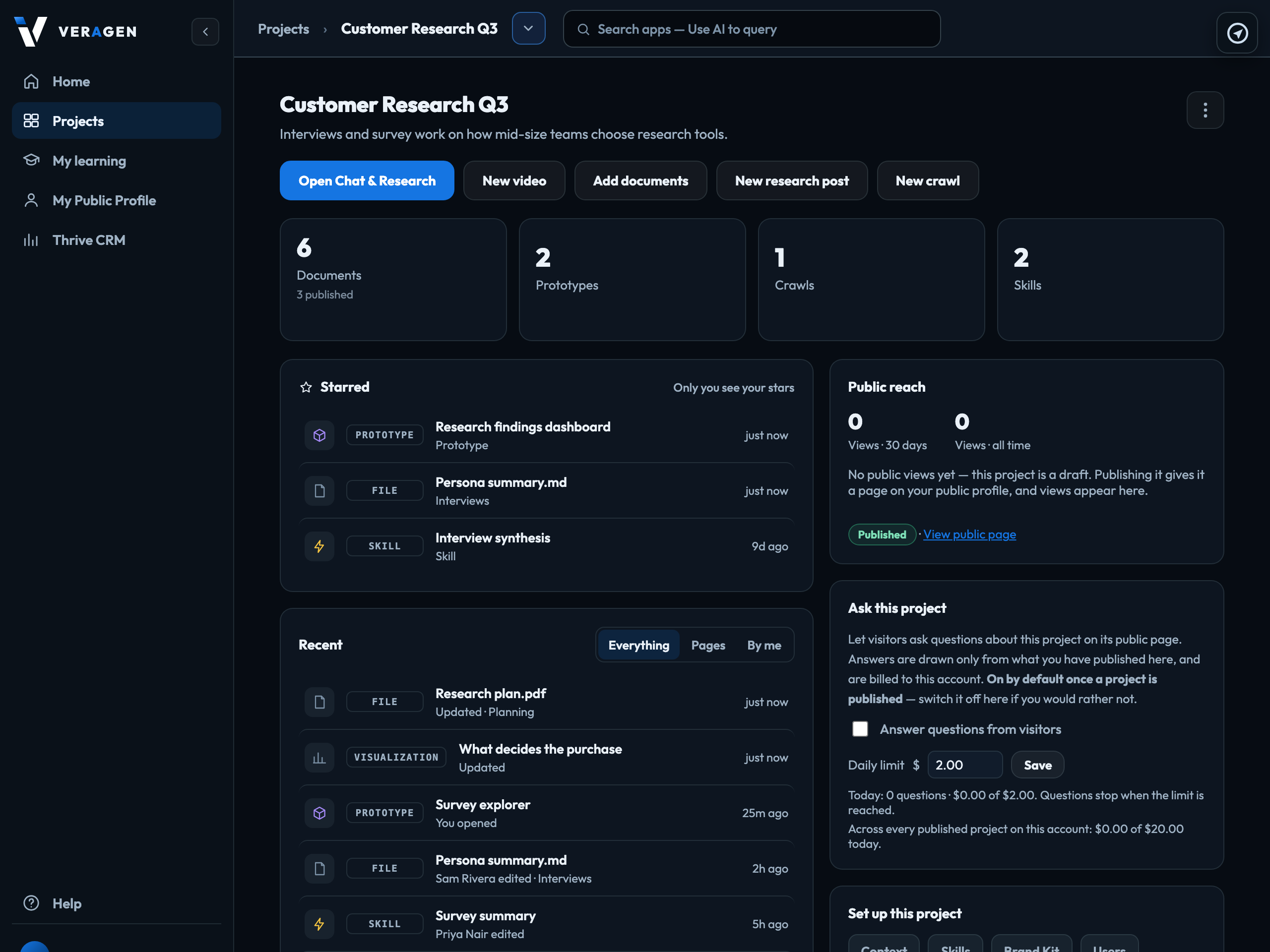
The screen you see when you open a project: what you starred, what happened recently, what the project holds, and the actions that start something new.
Start something
The row of buttons at the top are the four starts: Open Chat & Research (the AI builder, already pointed at this project), New video, Add documents and New crawl.
Starred
Anything you starred in this project — pages, files, prototypes, skills and videos — most recently starred first, each with an icon for what it is. Press one to open it where it lives: a page or file in Data Management, a prototype on its review page (in a new browser tab), a skill in Chat & Research, a video in Video Studio. Only you see your stars — starring something does not change it or tell anyone.
To star something, press the ☆ beside it:
- a page or file: at the start of its row in a Data Management folder, or at the top of it when it is open;
- a prototype: on its row in Prototypes, or Star in its ⋯ menu;
- a skill: on its row in Skills, or Star in its ⋯ menu;
- a video: on its card in Videos, or beside it under Recent videos in Video Studio.
Press it again (or choose Unstar) to remove the star. Something that is deleted, or a prototype taken out of the project, leaves Starred; a recovered item comes back still starred.
Recent
What happened in this project lately, newest first. Each row has an icon for what the item is and says who did what — You edited, You opened, or a teammate's name and what they did — and, for a page or file, which folder it is in. Pages, files, prototypes, skills and videos all record who opened, created or changed them. Press a row and it opens the screen that owns it.
| Everything | What anyone in the project created, edited, saved, uploaded or restored; what you opened; and charts, crawls and simulations by when they last changed. |
|---|---|
| Pages | Pages only. |
| By me | Only what you did. |
Other people see what you change, never what you open. Recent looks back 90 days. The filter you choose is remembered in this browser.
The counters
Documents, Prototypes, Crawls and Skills count what is in the project; each one opens that section.
Public reach, and set-up
Views over the last 30 days and all time, whether the project is Published or Draft, and a link to its public page. Below that, Ask this project — the switch that lets visitors ask an AI questions about this project, with a daily spending limit in dollars and today’s spend against it; it comes on when you publish the project, and the answers are billed to this account. Beneath those, quick links to Context, Skills, Brand Kit and Users — Context and Skills are what the AI reads before it writes anything for this project.
Signed in to VeraGen? Press Guide me on any screen for a walkthrough, or ask Odin.