Lead Generation
Leads & scoring
Lead Generation → Leads lists everyone a campaign has found, highest score first. Filter by band (Hot, Warm, Cool, Rejected) or status, or search by name, company, title or email and press Enter. The list shows 100 leads at a time, best first; ← Previous and Next → under it move through the rest, and a filter or search starts again from the top.
Every lead carries its evidence
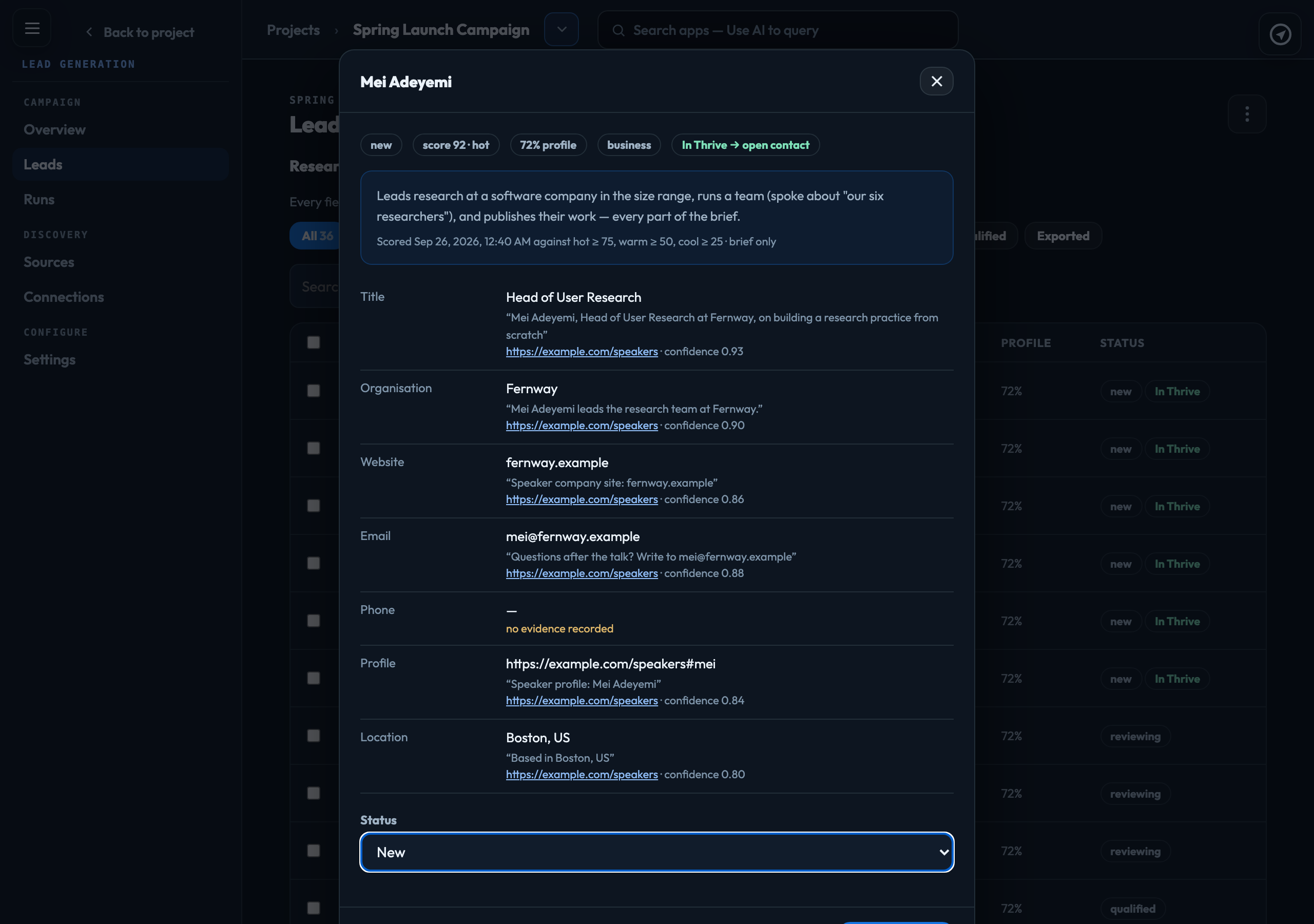
A name, title, email or phone found on a web page is kept only if the exact text is on the page, and the quote is stored beside it. A person bought in People data shows People Data Labs and the date for each field instead. Buy people data Anything that cannot be quoted is left out rather than guessed, and a shared inbox such as info@ or sales@ is never kept as anyone's email. Click a lead to see each field with its quote and a link to the page it came from. Organisation, website and location come from the same page without a quote, and say no evidence recorded. Nothing about a person is inferred.
Someone found again, with the same email, or the same name at the same organisation, is not added twice. A run that finds only people you already have reports 0 new leads, and still costs what it read.
Scoring
At the end of each run, every new lead is scored from 0 to 100 against the brief and your criteria, with a one-line reason and a list of anything it was judged without.
- Open Settings → Scoring.
- Click + Add a criterion and fill in What matters, How to judge it and a Weight. Up to 10.
- Set Hot at or above, Warm at or above and Cool at or above: 75, 50 and 25 unless you change them. Anything lower is Rejected.
- Click Save changes.
| Score | How well the lead matches what you are looking for. |
|---|---|
| Profile | How complete the record is: how many of eight fields were found (name, title, organisation, website, email, phone, city and country). |
Status and export
Open a lead, choose a Status (New, Reviewing, Qualified, Disqualified, Exported) and click Save status.
⬇ Export downloads CSV or Excel (.xlsx): the leads you ticked, the current filtered view, or everything in the campaign, with Standard, Full or CRM-ready columns. On Runs, tick runs and use ⬇ Export selected runs for the leads those runs found. An export holds up to 5,000 rows.
Do-not-contact
Settings → Do-not-contact takes an email, a domain, an organisation or a name. A rule covers every campaign in the account: anyone matching it is kept as suppressed rather than as a usable lead, left out of every export, and refused by Add to Thrive.
Adding leads to Thrive
Open a lead and click Add to Thrive, or tick up to 200 in the list and click Add to Thrive above it. Each becomes a Thrive contact owned by you and linked to this project, with its company found or created. Its fields keep the page they came from, and its score and band come across unchanged.
If the email already belongs to a Thrive contact you can see, the lead is merged into it: empty fields are filled and nothing is overwritten. The lead then shows In Thrive, which opens the contact.
Some leads are refused, each with its reason: disqualified or suppressed leads, anyone on a do-not-contact list here or in Thrive, a contact a colleague has not shared with you, and leads marked Sample data (made-up people from People data's test mode).
If something goes wrong
| No answer came back, so it may or may not have gone through | The list has been refreshed. Leads showing In Thrive were added; add only the others again. |
|---|---|
| Nothing to export — that scope resolved to no leads | The filters or ticked runs match no leads. Clear the filters or choose Everything in this campaign. |
Signed in to VeraGen? Press Guide me on any screen for a walkthrough, or ask Odin.