Uptime QA
Setting up a test
Uptime QA → + New test. The form changes with the check type you pick.
- Enter a Name and the URL to test: a public http or https address.
- Choose the Check type: Simple up check or AI form check.
- Fill in the fields for that type, below.
- Choose a Run schedule and who to notify.
- Click Save test.
Simple up check
| Expected HTTP status | Leave it at 200 to accept any successful response (any 2xx status). Any other code must match exactly, and then only that status passes: enter 404 for a page that must stay gone, or 503 to confirm a maintenance page is up. Redirects are followed, so the status checked is the final page's. |
|---|---|
| Text that must appear | Optional. The check fails if the page loads without it. Capitals do not matter. |
AI form check
| Instructions | What to do and the exact data to enter, in plain English: the value for each field, then which button to click. Any required field you leave out is filled with a test value, such as qa-test@example.com for an email. |
|---|---|
| Success goal | How the AI decides pass or fail, for example “a quote with a dollar amount is displayed”. After submitting, it reads the result page and gives a one-line reason either way. |
Schedule and alerts
| Run schedule | Manual only, or every 5, 15 or 30 minutes, every hour, every 6 hours, or every day. |
|---|---|
| Enabled | Turns the schedule on or off without deleting the test. |
| Notify when | On failure, On status change (only when it flips between success and failure), or Every run. |
| Notify emails | One or more addresses, separated by commas. |
| Notify Slack | A channel such as #alerts, or a person's email to message them directly, in your account's own Slack. The field opens once Slack is connected in Account → Connections. |
Run it and read the history
Run (or Run now on the test's page) queues a run, which starts within about a minute. It works whether or not Enabled is ticked: Enabled turns only the schedule on and off.
Click a test for its configuration and its last 50 runs: each run's status, what happened, the HTTP status, how long it took, whether it was manual or scheduled, and when it ran, in your own timezone, set in My Profile → Settings. When a run sent an alert, a line under what happened says where it went, or why it was not sent. For an AI form check, View screenshot shows the page the AI judged.
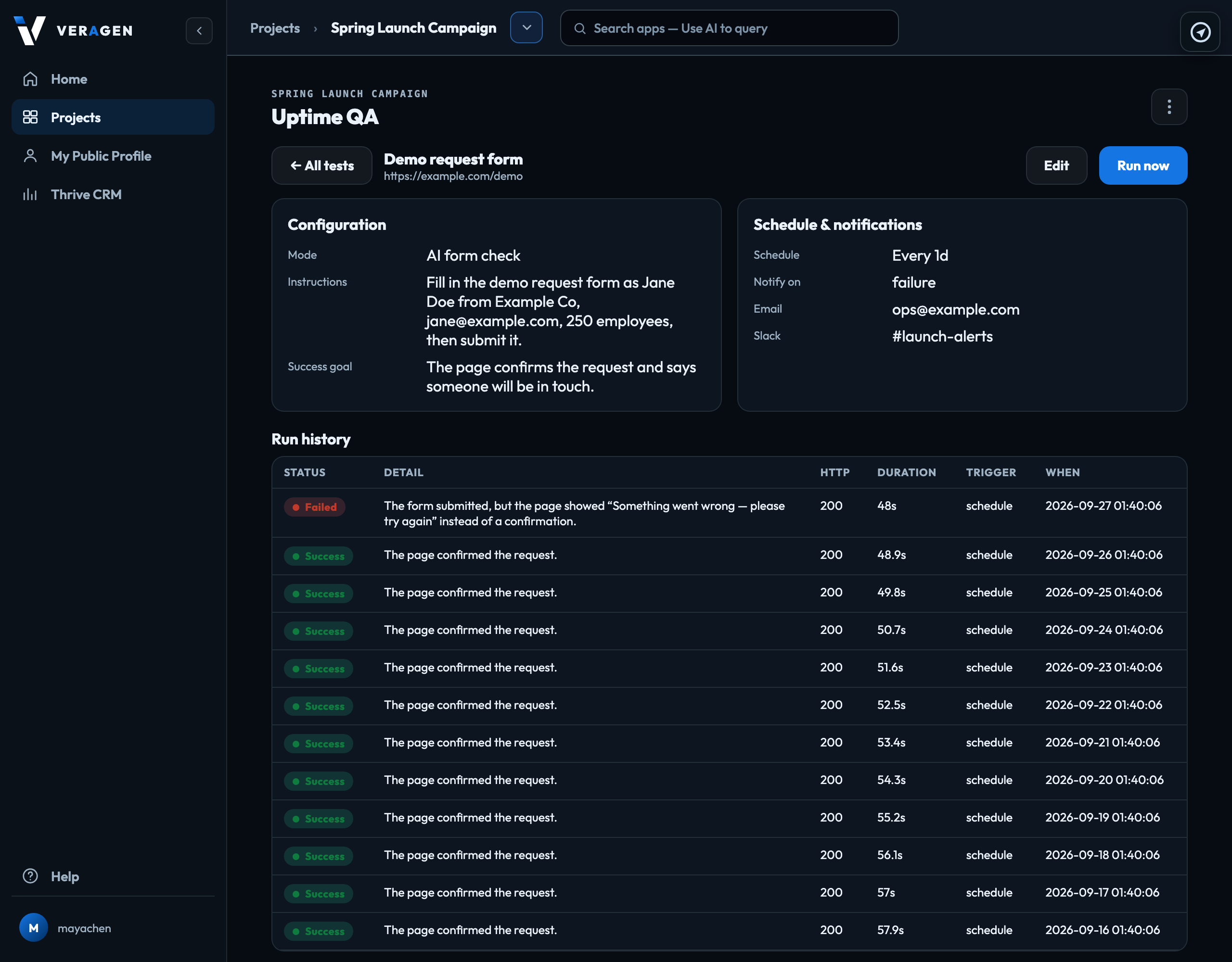
| Success | The page answered as expected, or the AI judged the goal met. |
|---|---|
| Failed | The detail says why: the status or text that did not match, or the AI's reason. |
| Running | Queued or in progress. The page updates by itself. |
If something goes wrong
| The form could not be driven | The AI agent could not complete the form. Make the Instructions more exact: name each field as it appears on the page. |
|---|---|
| URL not allowed (must be a public http/https address) | The address is private or internal. Only public sites can be tested. |
| This account is out of AI credit | AI form checks need credit. Add credit |
Speak instead of typing. The boxes here that the AI reads have a microphone beside them: press it, talk, and pause; the text lands in the box for you to check. Speaking instead of typing
Signed in to VeraGen? Press Guide me on any screen for a walkthrough, or ask Odin.