Getting started
Getting around
A rail down the left for the account's places, and a search box at the top that finds any app — type a name, or describe what you want.
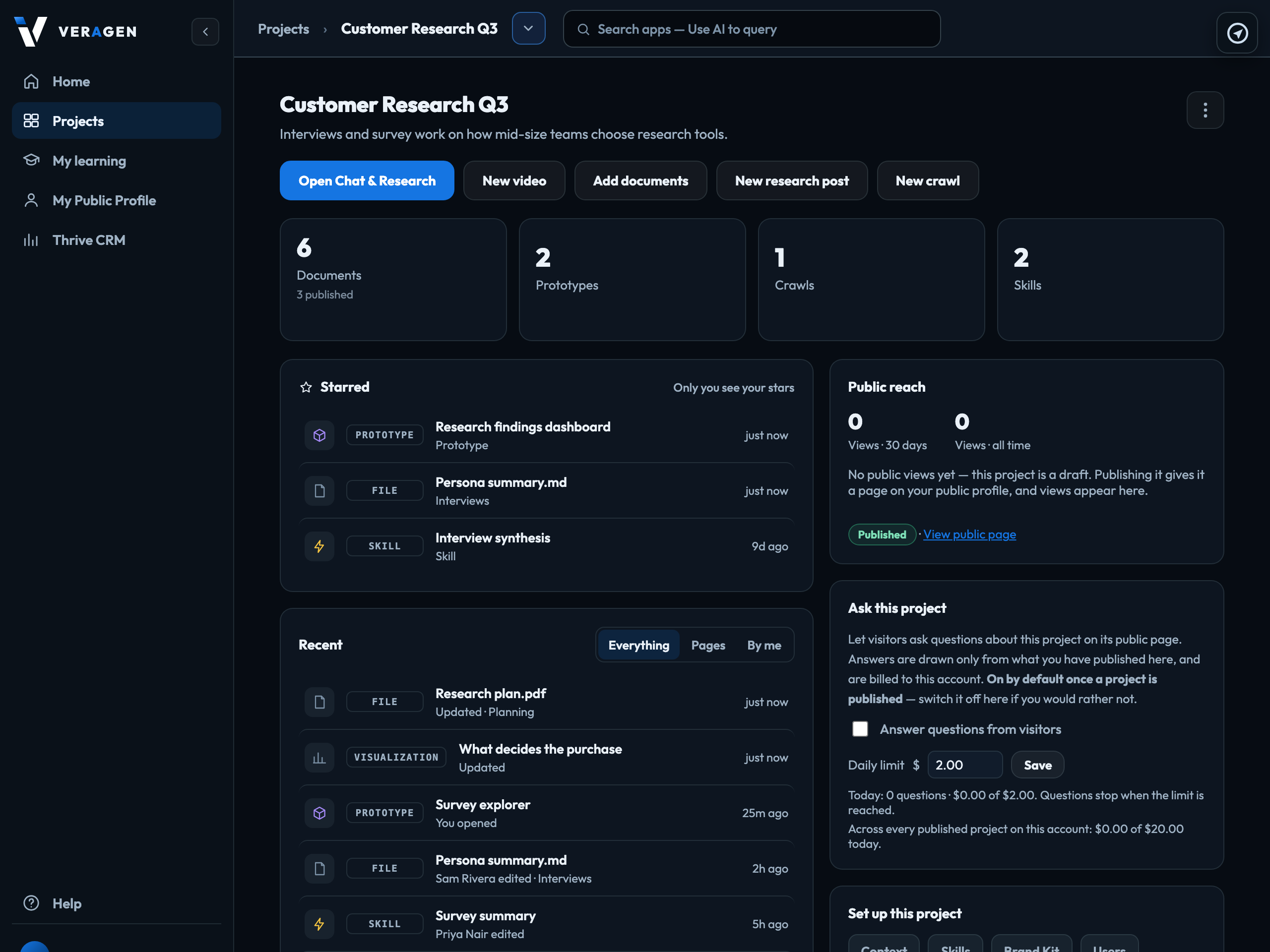
The left rail
It is on every page, and holds five places:
| Home | Your dashboard — balance, spend, what you have built, and your public reach across every project. |
|---|---|
| Projects | Every project in the account, as cards you can open. |
| My learning | Everything assigned to you in Ascend, with when it is due and how you did. My learning |
| My Public Profile | Your public page — the handle it lives at, and everything you have chosen to make public. Nothing appears there until you mark it public, and your profile has a master switch of its own. |
| Thrive CRM | Your account's CRM — contacts, companies and deals, shared across every project. The same person can be a lead on one project and a customer on another and is still one record. In beta. More about Thrive. |
Below them, on every page: Help, and your profile menu — your avatar at the very bottom. That menu holds your own settings: My Profile, Change password and Sign out, and for owners and admins Account and Report an issue.
Account is a section of its own, shown to owners and admins: Account Overview, Settings, Team & members, Connections, Billing, Payment methods, Statements and Observability. Members and publishers do not have it in their menu; the account's balance is on their Home page, which also names the account owner to ask for more credit. More about the Account section.
Collapse the rail with the chevron at its top; a small button at the top-left brings it back.
The search box
Everything the product can do is one click away in the box at the top of the page: Search apps — Use AI to query. Click it for every app, each with a line saying what it is for, in five sections:
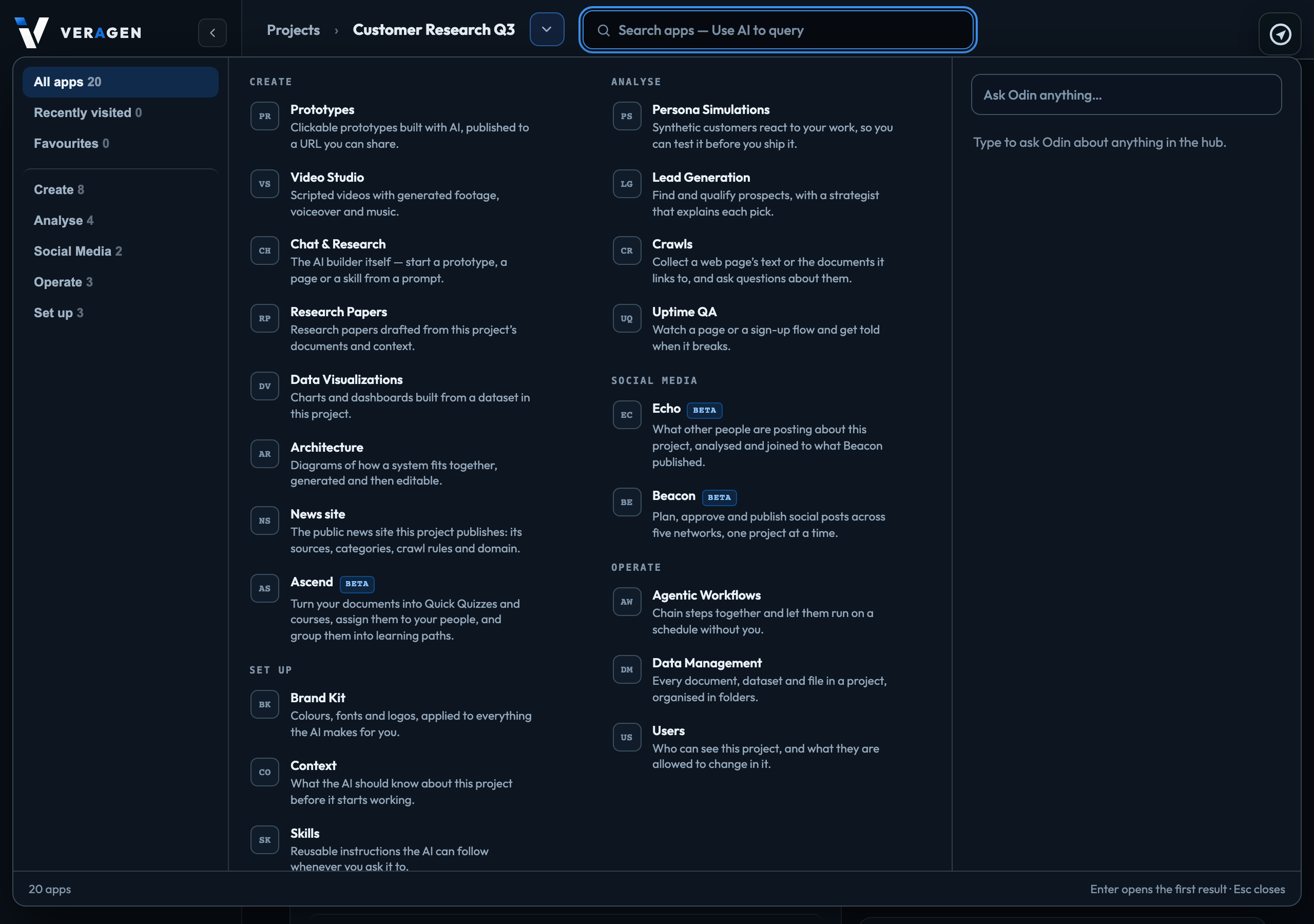
| Create | Chat & Research, Video Studio, Prototypes, Data Visualizations, Systems Diagrams, Ascend, RSS & Atom Feeds. |
|---|---|
| Analyse | Persona Simulations, Lead Generation, Crawls, Uptime QA. |
| Social Media | Beacon (what you publish) and Echo (what people say back). |
| Operate | Agentic Workflows, Data Management, Users. |
| Set up | Brand Kit, Context, Skills. |
Home, Projects, My learning, My Public Profile and Thrive CRM are in the rail rather than the search box; Help is at the foot of the rail, and the account's places are in Account.
| Search by what you want | The search box reads the descriptions as well as the names, so type what you want to do. "When it breaks" finds Uptime QA; "who can see this" finds Users. |
|---|---|
| Recently visited | The apps you opened most recently are at the top of the list. |
| Favourites | Click the star on any app to keep it at the top. |
| Keyboard | ⌘K (Ctrl+K on Windows) opens it from anywhere. Type, then press Enter to open the first result. |
The bar above the page
Inside a project it shows where you are: Projects › the project's name ▾. Projects goes back to the list of projects; the project's name goes to its Overview; the ▾ beside it switches to another project, and the page you are on switches with it.
It appears on project pages only. Home, Account, Help and Observability are account-wide, so they have no project bar.
Inside a project
Opening a project shows its Overview: what you starred, recent changes, counts, and the actions that start work. Move to any of its apps from the search box — the project comes with you. Inside an app the rail starts collapsed to give the app room; the menu button at the top-left opens it, and it returns to how you left it on the Overview.
Some apps have their own column on the left: Data Management (your folder tree), Beacon and Ascend (their sections), and Echo. While one is open the rail starts collapsed, so there is one column; the menu button at the top-left opens the rail beside it. ‹ Back to project at the top of the app's column returns to the Overview. Thrive CRM and Help work the same way. Chat & Research, Video Studio and the Agentic Workflows editor open full screen.
Signed in to VeraGen? Press Guide me on any screen for a walkthrough, or ask Odin.