Projects
Managing a project’s prototypes
A project's Prototypes page lists every prototype built for it in Chat & Research or uploaded from a file. Open it from the search box, or from the Prototypes count on the project's Overview.
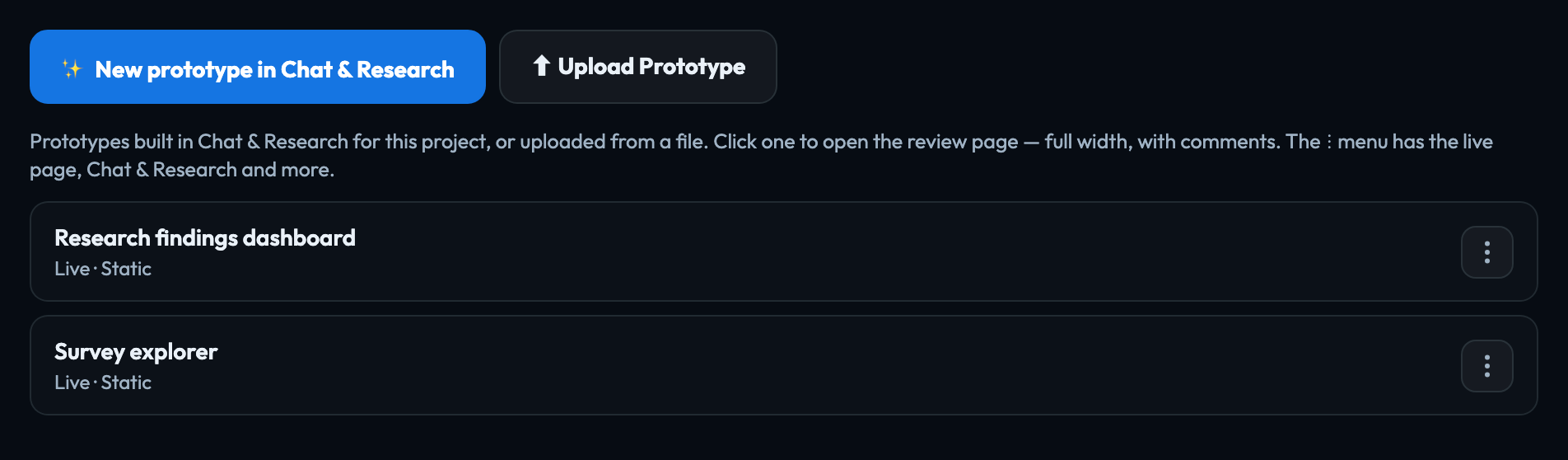
Adding one
- ✨ New prototype in Chat & Research starts a new prototype for this project.
- ⬆ Upload Prototype adds one you already have as an HTML file.
What each row shows
The prototype's name, its status — Live or Draft — and whether it was built in Chat & Research (Static) or Uploaded. Click a row to open its review page: the prototype full width, with its comments beside it.
With more than a few prototypes, a bar above the list searches them, filters by Live or Draft, and sorts by name or most recently updated.
The ⋮ menu
| Open review page | The prototype full width, with comments. |
|---|---|
| Open live page | The prototype as a visitor sees it, in a new tab. |
| Edit in Chat & Research | Change what the prototype contains. |
| Comments | Open it in Chat & Research with its comments; the count shows how many there are. |
| Edit details… | Change its name, description and status. |
| Set active / Set inactive | Switch between Live and Draft. |
| Remove from project | Detach it from this project. The prototype is kept, unassigned. |
| Delete | Remove the prototype from the hub for good. This cannot be undone. |
Live or Draft marks whether a prototype is current work or still being drafted. Change it from the menu, or in Edit details….
Signed in to VeraGen? Press Guide me on any screen for a walkthrough, or ask Odin.