Public profile
Choosing what is public
My Public Profile, in the left rail, is the one screen for deciding what is public.
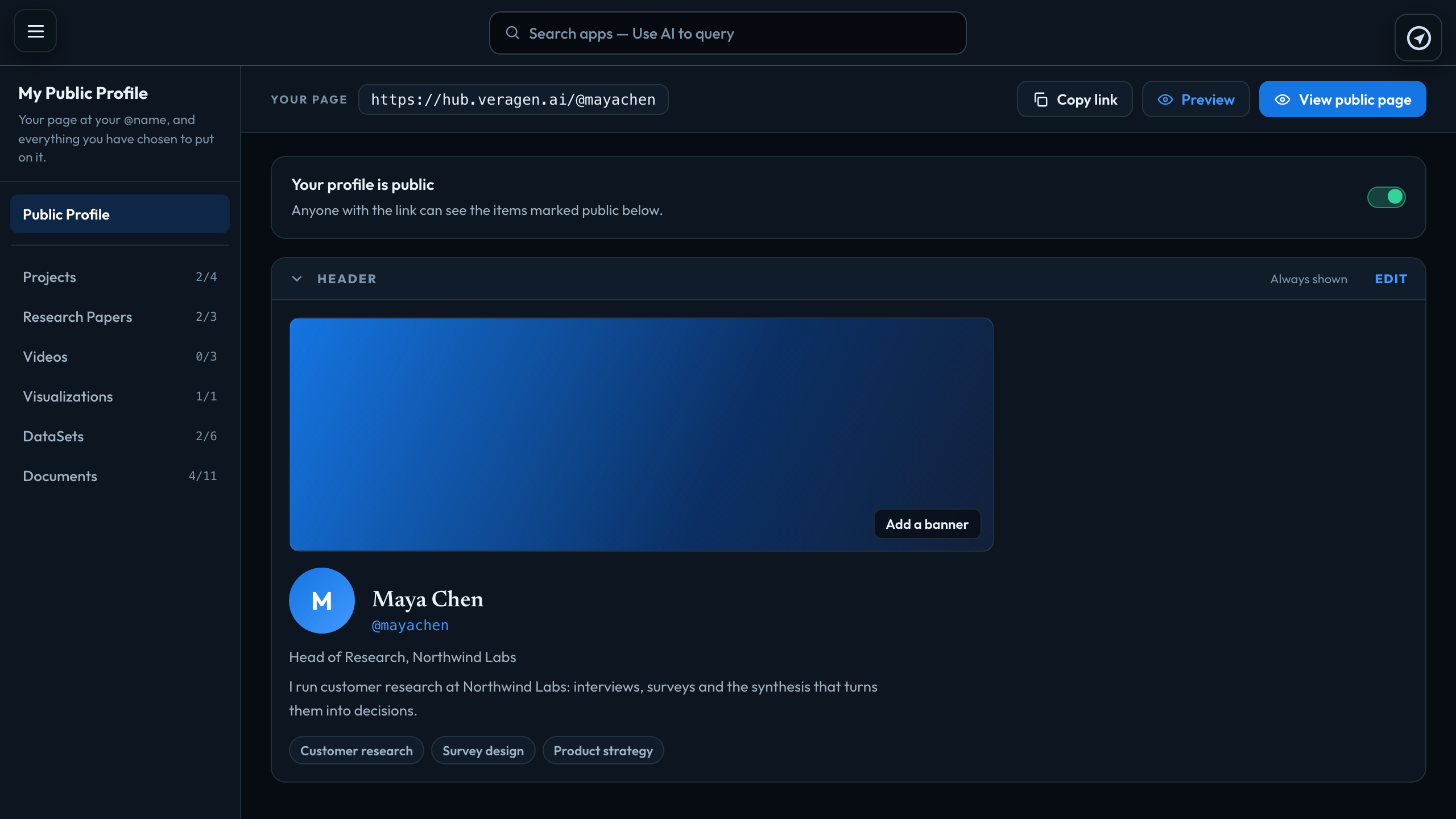
The places
The page has its own left navigation, one place at a time. Public Profile at the top holds your header: name, affiliation, bio, research fields, picture and banner. Click Edit to change them. Below it are Projects, Videos, Visualizations, DataSets and Documents, each with how many are public — 2/3 means two of three. Open one to see every item of that kind with a switch beside it.
Your page's address, Copy link, Preview and View public page stay at the top whichever place you are in.
Three switches decide
An item is visible only when all three are on:
- Your profile — the master switch at the top.
- Its project — a draft or archived project hides everything in it.
- The item itself.
If something you published is not showing, check its project first.
Opening a project
Click a project to see its own page, with the project's folder tree from Data Management and a switch on each item. A folder can be published or unpublished in one go, including the folders inside it.
Files in Data Management
Every file in a project's Data Management can be published — uploads, files imported from Google Drive and pages written in Chat & Research. A data file (a CSV or TSV, or a spreadsheet that reads as a table) is listed under DataSets; every other file under Documents. Its switch is the same one as on the project's folder tree, so either place changes it.
A visitor opens a text or Markdown file as a page, a dataset as a preview of its first rows, and a PDF, image or recording in place with a download beside it. Other files, such as Word documents, are offered as a download.
Videos
A video is published through its finished render. One that has never been rendered has nothing to show, so its switch is off and says why; render it in Video Studio and the switch becomes available.
Your banner
Upload a banner of 1500 × 500 pixels (3:1). Other shapes are cropped to fit.
Signed in to VeraGen? Press Guide me on any screen for a walkthrough, or ask Odin.