Beacon
Scheduling, preflight & publishing
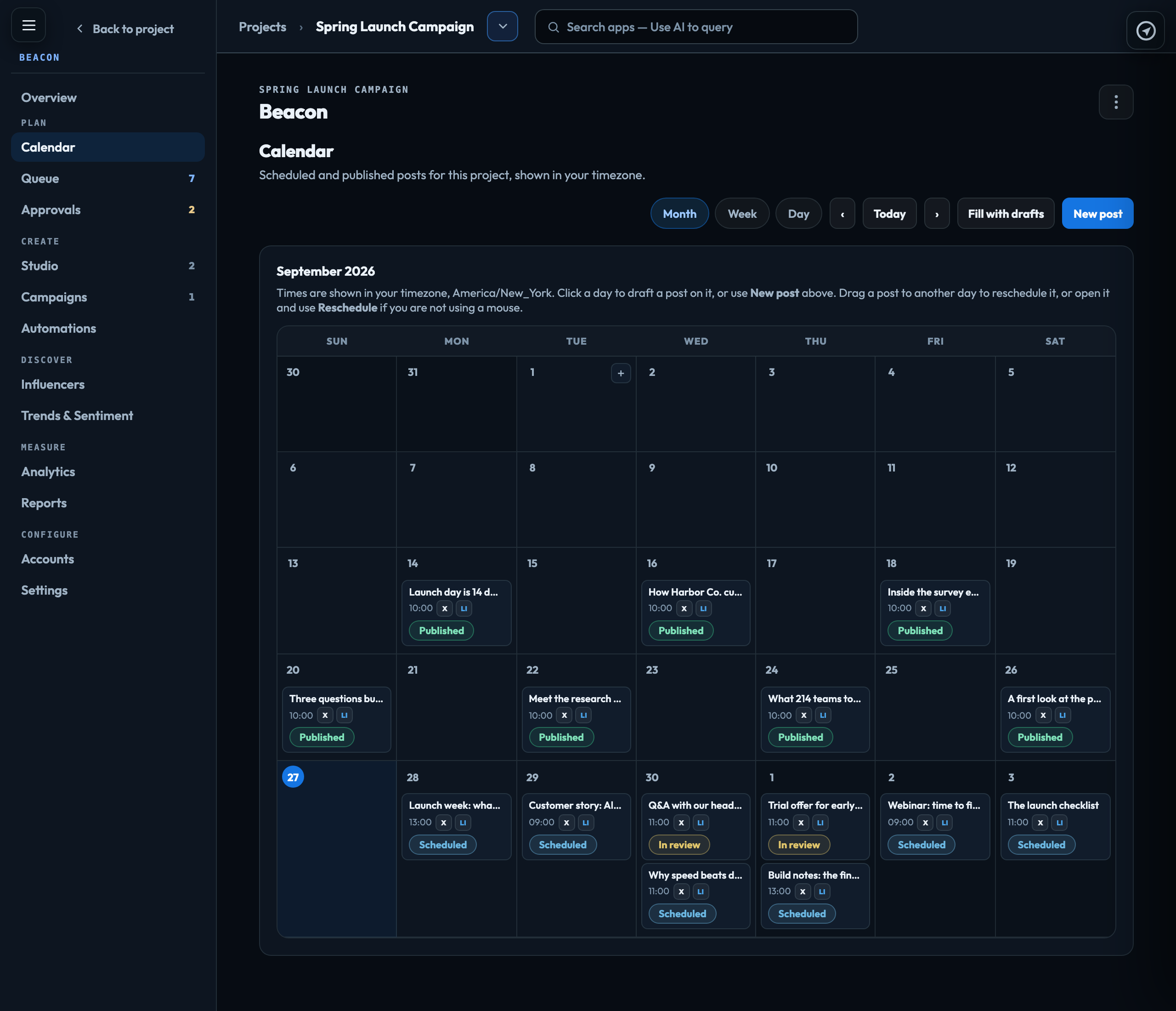
The Calendar shows what is scheduled and published; the Queue shows what is about to go, in send order, with the state of every check. Both show times in your own timezone, set in My Profile → Settings.
Scheduling
A post can be scheduled once it has cleared its approval chain. Open it and use Schedule: pick a Day and a Time.
On the Calendar (Month, Week or Day), click a day to draft a post on it, or use New post. Drag a post to another day to reschedule it; it keeps its time of day. Clear the schedule in the Queue takes a post off the schedule; it stays approved.
Smart send times (Settings → Send times & UTM) let Beacon choose the time instead: with it on, leave the time blank — or drag a post to a day — and Beacon places it at the best-performing hour of that day and says why. With it off, Beacon never picks a time for you.
Link tagging, on the same page, adds utm_source, utm_medium and utm_campaign to every link in a post when it is published, so your own analytics can tell which post brought a visitor. {network} and {campaign_slug} are filled in for each post. A link that already has UTM tags is left as you wrote it.
Cadence
Settings → Cadence & tracks sets the project’s Quiet hours, the minimum gap between posts and a daily cap per network. A schedule that breaks one is refused with the rule named. Quiet hours and the daily cap are counted in the timezone of the person scheduling — the one in their profile; for automations, in UTC. The calendar’s day view shades exactly the hours a post would be refused in.
The same screen holds the Theme tracks — the editorial mix, each with a target share. The calendar colours posts by track, so an unbalanced week shows.
Fill with drafts on the Calendar writes up to 40 drafts across a range of up to 60 days, using the theme tracks, cadence and brand voice. Everything it writes lands in Studio as a draft; nothing is scheduled. It uses AI credit, shown as Beacon — filling the calendar.
Preflight
Just before every send, Beacon checks eight things:
- A connected account
- A live token
- Not rate limited
- Within the network’s length limit
- Media present and supported
- Required disclaimers present
- Beacon’s own rules passed
- Links resolve
A failed check stops the send, marks the post Failed, and names the check. Run preflight in the Queue checks a post now rather than at send time.
| Rate limited | Not a failure. The send waits and is tried again; the post stays in the queue. |
|---|---|
| Partly published | When some networks sent and others failed, each network’s result is shown with Retry for just the failures. |
| Sent twice | Cannot happen. A post that has already gone out on a network is never sent again there, however many times a send is retried. |
| Held | The content check stopped it before it reached the public. Retrying will not publish it. Why something was held |
Compliance: block or warn
Settings → Compliance decides what happens when a post breaks this project’s rules: Block the send refuses it and names the rule; Warn only shows the finding and leaves the decision to the author. Only an owner or admin can change it.
Pausing everything
Pause sending in the Queue stops every send in the project, automations included. Nothing loses its send time, and a banner on every Beacon section says sending is paused until someone presses Resume sending.
Emails to a person
A post marked ✉ Email to is an email written in Thrive and sent to Beacon for approval. Approve, request changes or reject it like a post. Approving does not send it and Beacon never schedules it: once approved, its author sends it from their own mailbox.
Signed in to VeraGen? Press Guide me on any screen for a walkthrough, or ask Odin.