Ascend
Building a Quick Quiz
A Quick Quiz is built from the documents in the project's Data Management. Account owners, admins and publishers in the project can build one; publishing it to a public profile needs an account owner or admin. Members take quizzes rather than build them: opening Ascend, they see that quizzes are built by publishers.
Step by step
- Put the material in the project's Data Management — the policy, the handbook, the standard. Anything with readable text will do. What the AI can read
- In Ascend, press New Quick Quiz, give it a name and press Create quiz. It opens on Documents.
- Tick the documents the quiz is written from, and press Save. A document marked no readable text yet is still being read, or has no text Ascend can use; it can be ticked once it has some.
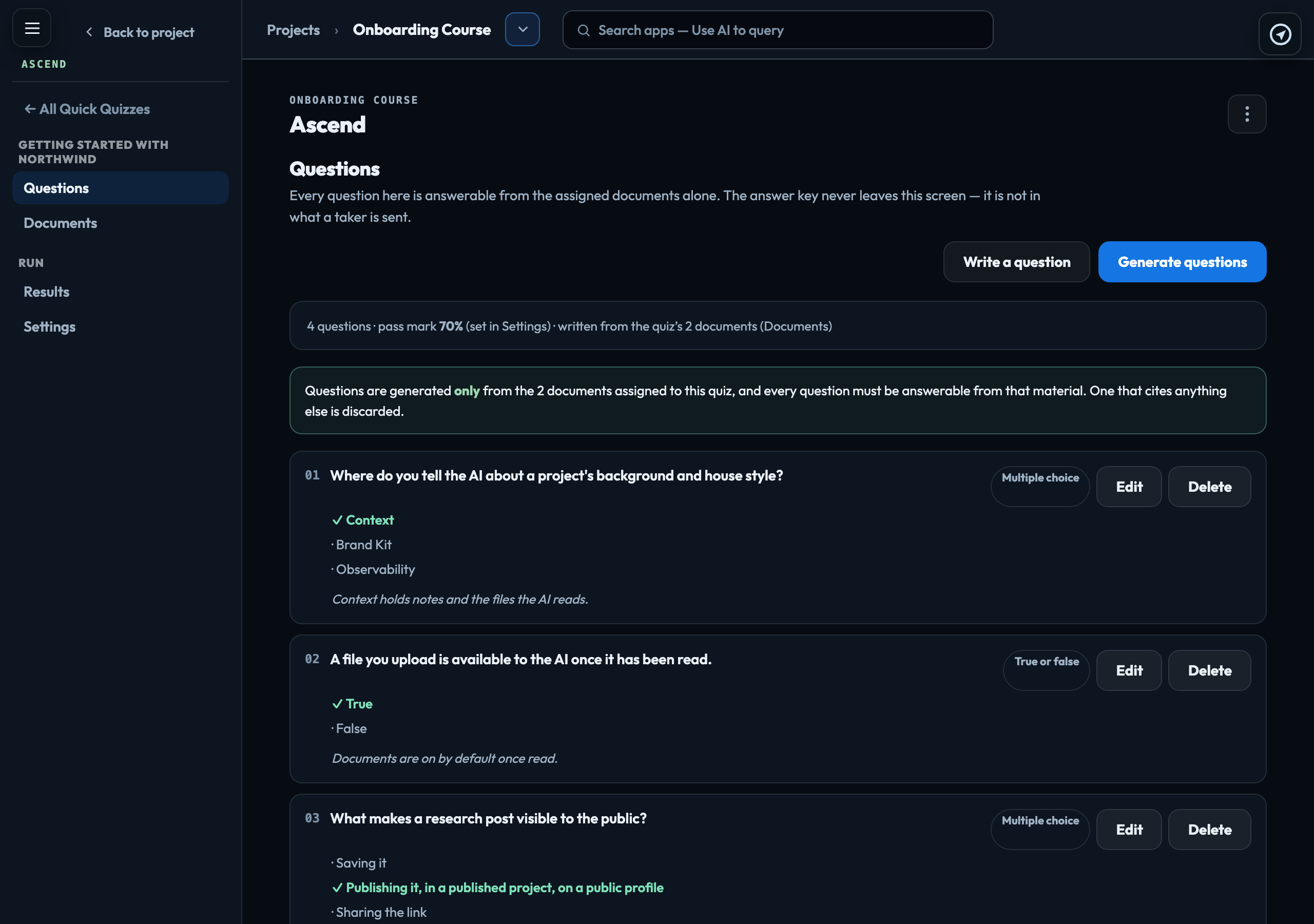
- On Questions, press Generate questions and choose how many, 1 to 25. Or press Write a question and write one yourself.
- Check each question and its answer, and change or delete any you would not ask. Then publish it from Settings. Publishing and sharing
To add many files at once, or upload new ones into the quiz's own folder, use Documents in Ascend's menu. Documents for every quiz and course
The line under Questions says how many questions there are, the pass mark and how many documents they are written from. The pass mark is set in Settings, and the documents in Documents. To rename the quiz, change Quiz name in Settings and press Save settings.
Assign narrowly. Every question has to be answerable from the material, so three focused documents make a better quiz than thirty.
How much Ascend reads
Each time it writes, Ascend reads the first 12,000 characters (around 2,000 words) of each assigned document, at most 40 documents, and 120,000 characters in all — about ten long documents read in full, in the order the Documents screen lists them. Text past those limits is not read. To ask about a section deep inside a long handbook, put that section in a document of its own.
The Documents screen says this where you choose, marks a document that is longer than Ascend reads (only the first 12,000 of 48,210 characters are read), and warns when what you have ticked goes past a limit, naming any document that would not be read at all. More than 40 documents cannot be assigned.
Question types
| Multiple choice | One correct option. |
|---|---|
| Choose several | Every correct option must be ticked, and no wrong one, to score. Written by hand; generated questions are the other three types. |
| True or false | One of the two. |
| Short answer | Typed. You list the accepted answers, one per line; case and spacing are forgiven. |
Why that is the answer on a question is shown to takers only if you publish the answer key.
What a generation reports
After Generate questions, Ascend says what happened to each question, for example 6 questions written. 2 discarded for not citing an assigned document.
| Written | Traced to an assigned document and well formed. Saved. |
|---|---|
| Discarded | Could not be traced to an assigned document — usually the material does not cover that ground. Assign the document that does, or accept a shorter quiz. |
| Rejected | Malformed, such as no correct answer marked. A question nobody can pass is never saved. |
Generating uses AI credit, shown in your usage as Ascend — writing test questions.
If something goes wrong
| Generate questions is greyed out | No documents are assigned to the quiz. Press Choose documents. |
|---|---|
| None of the assigned documents has any readable text yet | They are still being read. Try again in a minute or two. |
| This account is out of AI credit | Credit is added in Account → Billing by the owner or an admin with billing access. Anyone else is told which owner to ask. |
Signed in to VeraGen? Press Guide me on any screen for a walkthrough, or ask Odin.