Chat & Research
Building with Chat & Research
Chat & Research is where you ask about your project and have the AI make things for it: answers, documents, spreadsheets, PDFs, clickable prototypes and skills. Open a project and choose Chat & Research from the search box at the top, or click Open Chat & Research on the project's Overview.
Ask a question
- If you are asked, choose the project under Start in a project and click Start building →. Everything in Chat & Research belongs to a project, and the AI answers from that project's documents, context and skills.
- Type your question in the box at the bottom and press Enter.
A question is answered in the conversation, which uses the full width of the window. The answer names the documents it comes from. It can also search the web and read websites. See Attachments, the web, voice and models for which documents it reads and how it uses the web.
The AI knows today's date in the timezone in your profile (My Profile → Settings), so "this year" or "last quarter" means what you expect. Prototype and skill tabs are told the date too, as is a targeted edit to one part of a prototype.
Ask for a document, a spreadsheet or a PDF
Ask for something to be made, such as "a one-page brief on why customers churn", "a spreadsheet of every open deal" or "the pricing summary as a PDF", and it opens on the right on a white page:
| Document | A written document with headings, lists and tables. |
|---|---|
| Spreadsheet | A grid with lettered columns and numbered rows, made when you ask for a spreadsheet, a CSV or an Excel file. Every row must have one cell for each column heading. A row that does not is marked, a note above the grid names it, and the spreadsheet cannot be saved until you ask for the table to be fixed. If the answer has no table in it at all, it opens as a document instead: ask again for the data as a table. |
| Made when you ask for a PDF. While it is being written, the text appears on one page; when it is finished, you see the PDF file itself, page by page: the same pages, typeface and footer as the PDF that Save and Export make. The bar above it says how many pages there are. The line under the answer gives the number of pages too, for example Made a PDF: “Q4 brief” (2 pages). |
Keep chatting to change it ("add a risks section", "add a column for the owner"). Each change is a new version in the version list at the top. Close the pane with ×; Show document in the conversation header brings it back.
If an answer stops before the document is finished, for example because the AI service is busy or the document is very long, nothing is made and the conversation says so. A document you already had stays as it was. Ask again; for a very long document, ask for it in parts.
To keep it, use Save or Export. See Saving and exporting from Chat & Research.
Tabs
Each piece of work is a tab across the top: a Chat & Research tab, a prototype or a skill, side by side. + opens a new Chat & Research tab. Click a tab to switch to it; double-click its name (or press F2) to rename it. A dot on a tab means it has a document, spreadsheet, PDF, prototype or skill that is not saved, and closing it asks first. ⋯ on the selected tab, or right-clicking any tab, has Rename, Duplicate in a new tab (a copy to try something different; it is saved or published as its own item, and is a new conversation in History), Open in Data Management (for something already saved there; it opens in a new browser tab), Close tab and, on a Chat & Research tab, Delete from History.
The menu at the top-left sets what the tab is: Chat & Research, Prototype or Skill. On a tab that already holds work, choosing another kind asks whether to Open in a new tab or replace this tab.
Tabs belong to the project they were opened in. They are not shown in another project, and unsaved work never moves to another project. Your tabs stay when you reload the page. Saved work (a published prototype, a saved skill, something saved to Data Management) opens again as tabs the next time you open the project's Chat & Research, on any computer or browser you sign in on: the same tabs, in the same order, with the one you had selected in front. Closing a saved tab takes it off that list; the work itself stays saved. If a saved tab cannot be opened at that moment, for example because the connection dropped, it stays in the list and is tried again, and it opens when you select it; nothing can be sent from it until it has opened. Conversations are kept in History (below), so closing a tab that only has questions and answers loses nothing. A document, spreadsheet, PDF, prototype or skill that is not saved is kept only until you close the browser tab, so Chat & Research asks before you leave with one: when you use the navigation, switch project, close a tab or close the window.
History
Every Chat & Research conversation is kept: your questions, the answers with their sources, the web pages they read and when they arrived, and a link to anything the conversation saved to Data Management. It is kept as you go, after each answer, and the line at the top of the tab says so: Kept in History. Keeping… means the latest answer is on its way to being kept. If it could not be kept, the line says Not kept — retrying and Chat & Research tries again by itself; if you close the window while it says so, the browser asks first.
Click History at the right of the tab bar to see your conversations in this project, newest first, with the date of each. Type in Search conversations to find one by its name or by anything said in it. Click a conversation to open it in a tab, or to bring its tab forward if it is already open, on any computer or browser you sign in on, and carry on: the AI is given the whole conversation, as before. A conversation that saved a document opens with the document too.
A conversation is named after its first question. To rename it, use ⋯ → Rename in History, or rename its tab; the two stay the same. ⋯ → Delete in History, or Delete from History in the tab's ⋯ menu, removes it from History and closes its tab; a document it saved stays in Data Management.
History is yours: other people on the project do not see your conversations, and you do not see theirs. It keeps the newest 200 messages of a conversation (100 questions and their answers). In a longer one, the oldest messages are no longer kept: History shows how many, and the conversation says so at the top when you open it.
Prototype and skill tabs are not in History: a prototype is kept by publishing it and a skill by saving it, each with its own conversation.
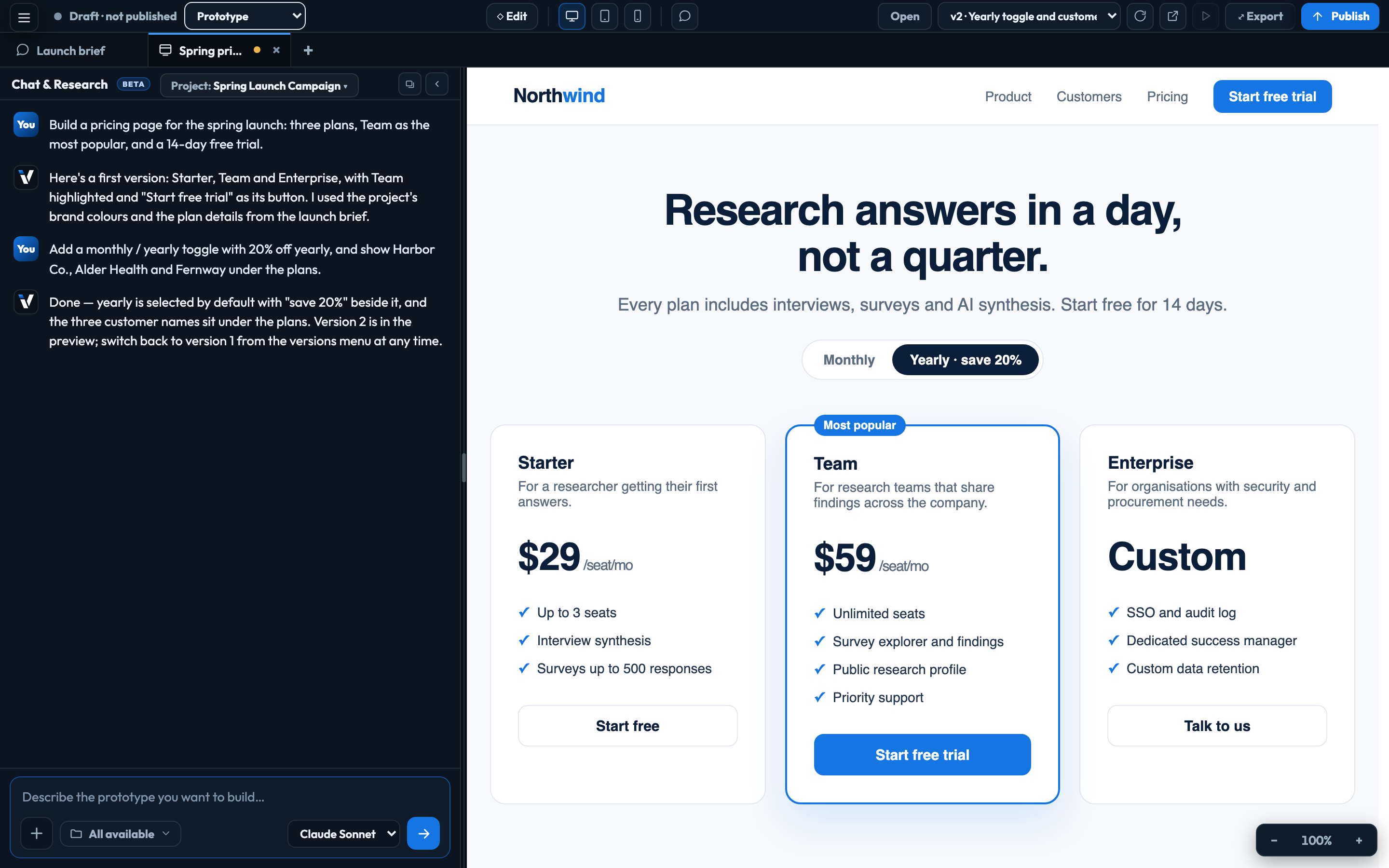
Build a prototype
- Choose Prototype in the menu at the top-left, or open a new tab and choose it there.
- Describe what you want and press Enter. The prototype builds in the preview as it is written.
- Keep chatting to change it: "make the header sticky", "add a second pricing tier".
- Click Publish, give it a Name and optional Description, and click Publish again. It is added to this project's Prototypes. A prototype is always published into the project its tab belongs to; to publish into another project, switch project first and build it there. Saving a skill works the same way.
The prototype works as you build it: click through it in the preview, and switch between Desktop, Tablet and Phone at the top. ◇ Edit, Comments, zoom and Publish are on prototype tabs only, and so are their keyboard shortcuts.
Skills
A skill is standing instructions the AI follows whenever it writes for this project, such as a citation style. Choose Skill, describe it, and click Save skill to add it to the project's Skills, switched on. Library in the top bar lists the project's skills to open one.
What it costs
After each reply, a note near the bottom of the window shows what it cost and the account's balance: This answer on a Chat & Research or skill tab, This build on a prototype tab.
Each reply uses AI credit, shown in your usage as Chat & Research — questions and documents for a Chat & Research tab, Chat & Research — prototypes and skills for prototype and skill tabs, and — targeted edits for changes to one part of a prototype. Longer answers, attachments and many documents use more. Saving and exporting cost nothing.
Signed in to VeraGen? Press Guide me on any screen for a walkthrough, or ask Odin.