Chimp
Design: what it will look like
When the spec is approved, the AI designer starts at once. It turns the spec and your project's Brand Kit into a design you can click through, comment on with your team and change in plain words. Open the app and click Design in the steps across the top.
Watch the video
 Design Your Site with Chimp2:46 video
What the designer makes
| Sitemap | Every page and how they connect, from the pages in the spec. Click a page to open it. |
|---|---|
| Wireframes | Every page as blocks (a hero, a list of features, a form…), so you can see the layout at a glance. |
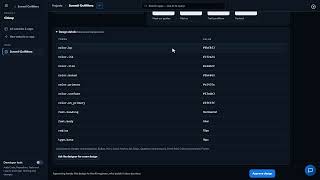
| Design system | The colours, fonts and corner radius of the site, taken from the project's Brand Kit. Text on buttons is chosen so it is easy to read. With no Brand Kit yet, Chimp uses its own defaults and says so. Design details lists every value. |
| The prototype | Every page drawn with your design and real words, in the hub. Its buttons and links go to the other pages, so you can click through it the way a visitor would. Choose Desktop, Tablet or Phone to see it at that size, and another page from Page. |
The words come from your spec, your answers and, if you imported it, your existing website. The designer never makes up facts about your business: a price or number nobody gave is shown as "please check", and a note at the top says how many there are. Click the words with Edit words and type the right value; once you have, it leaves the count.
It takes a minute or two. You can leave the page: the work carries on, and the design is there when you come back. If the designer cannot finish, it says so: press Try again.
Review it with your team
Above the prototype, choose what a click does:
| Browse | Click through the prototype. |
|---|---|
| Comment | Click a spot on the page and write a comment. It is pinned there with a number, and listed under Comments on the right. |
| Draw a box | Drag a box around a region of the page, then say what is wrong with it. |
| Edit words | Click any word to change it, or any picture to swap it for one from the project's Data Management. Your own words go straight into the design, as a new version. |
Each comment can be:
- ✦ Make it a design change: the designer proposes a change from it; when you accept, the comment is resolved.
- To Skunk Works: a task in the project's Skunk Works, with the comment's words and page.
- Resolve (and Reopen), Reply or Remove. Removing hides a comment and its replies; only its author, owners and admins can remove one.
Viewers can look and read the comments; everyone else can comment, draw and edit.
Ask the designer
The box at the top, Ask the designer…, takes plain words: "make the buttons green", "add a page about our team", "move the reviews above the prices". The designer shows a Proposed design change; nothing changes until you press Accept (or Not now). Each accepted change is a new version of the design. Design details → Ask the designer for a new design starts again from the spec, with your notes.
The locked preview
Once the apps platform is connected, Open the locked preview shows the prototype as a real site on its own locked address (something.veragen.dev). It opens only inside the hub. Its address is renewed by itself while the page is open, so it keeps working. After the design changes, press Refresh the preview to package the latest version. Until the platform is connected, the prototype is shown in the hub, drawn by Chimp.
Approve the design
Approve design is for publishers, admins and owners (owners and admins can narrow this in the app's Settings). Approving:
- saves a Design page in the app's Documentation folder in Data Management (the sitemap, the design system and every page's sections);
- marks the design task Done in Skunk Works (every piece of the designer's work is noted on it);
- starts Build, for a website or app. See Build.
After approval the design is fixed; changes are asked for on the Build step.
Prototypes (design only), and prototypes made before Chimp
A Prototype (design only) stops after Design. When its design is approved, anyone who can edit can press Continue to build and choose Website, Web app, Online store (where payments are available on the account) or Client portal; then Build starts.
Prototypes made before Chimp are part of it. When someone who can edit opens a project's Chimp list, the project's prototypes appear there as prototypes at the Design step, with all their comments and drawings, shown by the same review page as before. Their old links open them in Chimp.
A prototype that is in no project is listed under Prototypes not in a project yet: Add to this project brings it in. Its maker, owners and admins can add one.
To make one a real website or app, approve it and choose Continue to build. Because it was made before Chimp, it has no spec yet, so Chimp asks its questions first, then designs and builds it from the spec.
Signed in to VeraGen? Press Guide me on any screen for a walkthrough, or ask Odin.