Chimp
Release: publishing, versions and rollback
Release puts your website or app live at its free address, such as yourapp.veragen.app, safely. Open the app and click Release in the steps across the top. It opens when QA is approved.
Watch the video
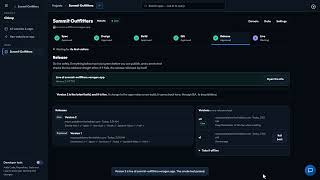 Release and Roll Back2:14 video
> [!NOTE] > Release runs on the apps platform. Until it is connected, Release says it is waiting for the apps platform.
The release checklist
Everything on the Release checklist has to be green before you can publish. Chimp checks it again every time:
| Spec approved | The spec this was built from. |
|---|---|
| QA approved | With the run and its scores. |
| The tested build is the one being published | If the build changed after QA, run QA again. |
| No blocking bugs | No blocker or critical bug open in Skunk Works. Minor and major bugs are listed in the notes. |
| Publish scan passed | See below. |
| Address ready | The free address, with HTTPS. |
| Payments set up | For an online store only: the project's store takes payments. Other websites and apps show Payments as not needed. Where payments are not available on the account, this item cannot turn green: to publish the store without taking payments, open its Settings and choose Publish without payments → Make it a web app. |
| Store connected | For an online store only: the build being published carries an active store key. If its key was revoked in Sales channels, or the store was never connected, press Save in the app's Settings: Chimp makes a new key and adds a change to Build that connects the site again. |
| Documentation written | The Overview, the acceptance tests and the test results, in the app's Documentation folder in Data Management. |
The publish scan
Press Run the publish scan. It checks the pages QA found for look-alike sign-in forms, pretending to be another company, hidden redirects and unsafe links. If something needs fixing (such as a missing Report this site link), the item stays red: fix it and run the scan again. If something looks suspicious, the release is held for review by VeraGen instead; you can publish once a reviewer allows it.
Release notes
Write them for me writes the notes from the stories in this release, the changes you asked for in Build, and the bugs fixed during testing, and lists the known open bugs. Edit them in the box (a line starting ## is a heading, - is an item) and press Save my changes. You can also ask the AI box, for example "Make the notes shorter". The notes are saved in Data Management when you publish.
Publish
Press Publish version N at the foot of the page, then confirm. Owners and admins publish; owners and admins can make it owners only in Settings → Who approves. Publishing makes a new version that never changes and points the address at it.
Straight after, a smoke test opens the live address and your main pages. If any of them does not show your app, the address goes back to the previous version by itself (or offline, for a first release), a blocker bug is filed in Skunk Works, and Releases says what failed. Fix it, run QA, and publish again.
When it is live, Open the site opens it, and the Live step starts.
Versions
Versions lists every version you have published. Roll back makes an older version live again within a minute; Return to this goes forward again; when the app is offline, Make this live brings any version back. Nothing is deleted. A build that is already a version is never published a second time: after rolling back, Release says which version holds the latest build, and you make it live again from Versions. Take it offline (under Versions) stops the address showing the app; Make this live beside a version brings it back.
Report this site
Every page of a website or app on a free address carries a small Report this site link, so anyone can tell VeraGen about a harmful site. VeraGen reviews every report. If VeraGen takes an app down, every address of it says so, Release shows the reason, and it cannot be published. Contact VeraGen support (hello@veragen.ai) if you think that is a mistake.
Signed in to VeraGen? Press Guide me on any screen for a walkthrough, or ask Odin.